You don't need a big Windows program and a separate CAM package to get cabinet parts onto your CNC. With CabinetFORGE the whole trip, from the drawing to the G-code file your machine runs, happens in a web browser. Here's how it goes, step by step, the way I do it in my own shop.
1. Open CabinetFORGE in your browser
Go to cabinetforge.app/shop and log in with your license key. There's nothing to install. Chrome or Edge on any computer works, Chromebooks included. Your jobs and settings are saved online, so the office computer and the shop computer see the same thing.
2. Set up your machine once
Open Tools › Nest, then Setup › Machine.
- Load your post. Use the same post processor file (.pp) your machine already runs with. If you use VCarve or Aspire, it's the one you pick there.
- Z zero. Tell it where you zero the bit: the table or the top of the sheet. It has to match how you really do it.
- Tool changes. Automatic changer, or by hand. By hand gives you one file per bit.
There's a 2-minute video of this on the Start here page.
3. Set up your bits, and measure them
On the Tools tab, tick what each bit is allowed to do: cut parts out, drill, cut dados and pockets. Then put a caliper on every bit and type what it really measures. Every cut is worked out from that number, not the label on the package.
4. Draw the cabinets
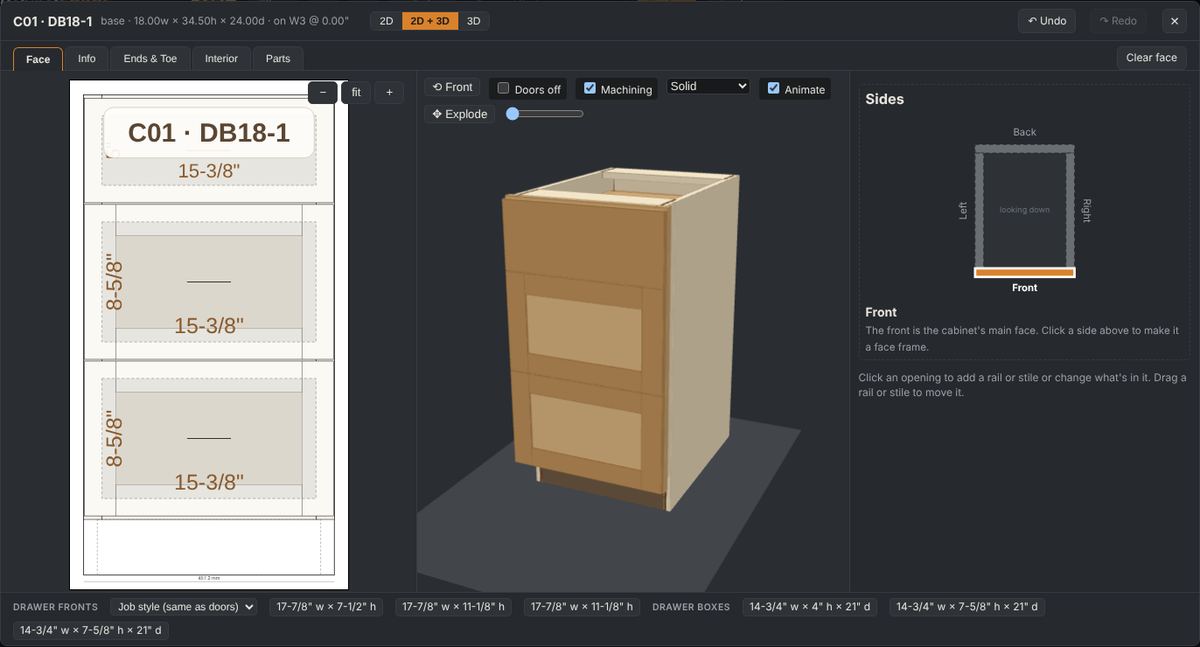
Pick a cabinet from the library, drop it on a wall, and size it. The ends, bottom, back, stretchers, face frame, doors and drawer boxes are all built from your shop settings. Click any part in the 3D view to see exactly what it is.
5. Nest the sheets
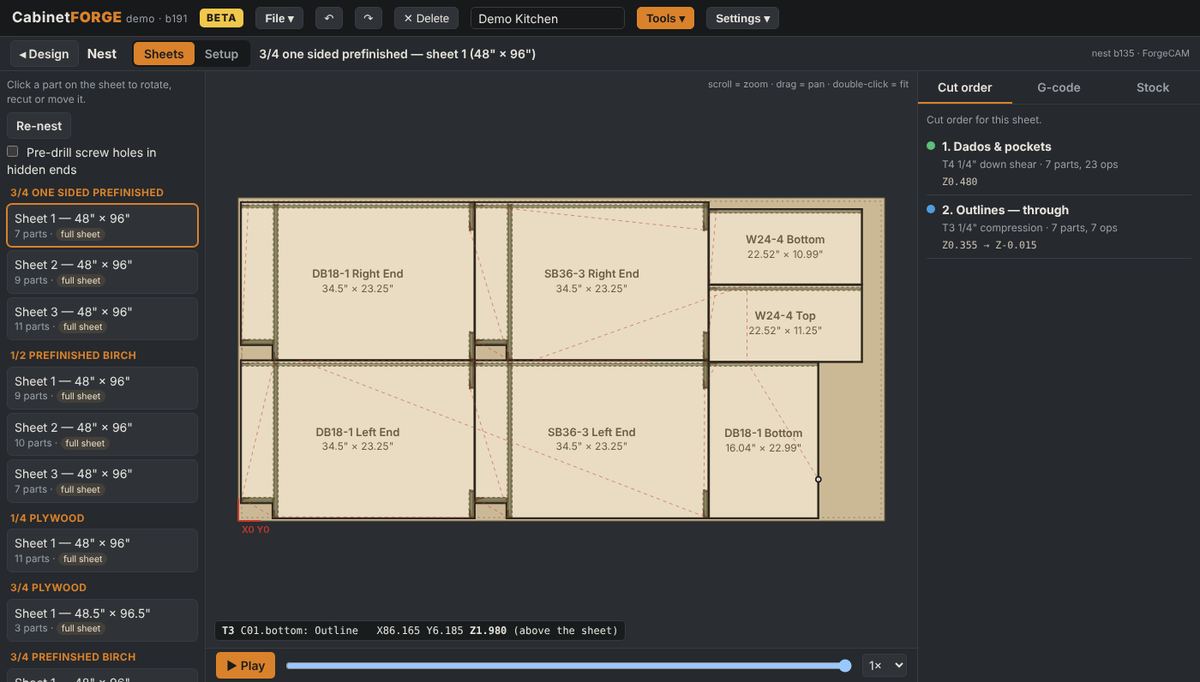
Open Tools › Nest. Every part is laid out on sheets, each material on its own, with the sheet count in front of you. The cut order is set for you: dados and pockets first, outlines last, so parts stay put while they're cut. Press Play to watch the toolpath run on screen before it runs on your machine.
6. Save the G-code
Save one sheet, every sheet of one material, or the whole job at once. If one cut goes wrong, you can save just that bit's work on just that sheet and run it again. The first time you save, CabinetFORGE asks you to confirm where your Z zero is, so the first file can't surprise you.
7. Cut the first sheet in the air
On your first job, run the first sheet with the bit raised well above it, or on a scrap sheet. Watch where it starts, where it plunges and where it parks. Looks right? Cut it for real, print the part labels, and measure a part against the cut list before you run the rest.
Questions
Can I really make CNC G-code in a web browser?
Yes. CabinetFORGE draws the cabinets, nests the parts and writes the G-code for your machine, all in Chrome or Edge. There's no second CAM program.
Will it work with my CNC?
It uses the same post-processor files VCarve and Aspire use. Send me your post and a program you've already run, and I'll check it before you cut.
What does it cost?
$79 a month, with 3 seats and part labels included. Early access opens November 30.
Get on the launch list
One email when CabinetFORGE is ready. Nothing else, and your address goes nowhere.